The ground beneath your Viking boots feels familiar, yet something’s undeniably off. You've launched Valheim countless times, perhaps even revisited a beloved world, but this time the map isn't quite right. Maybe the long-lost merchant, Haldor, is nowhere to be found where a web map generator promised, or familiar biomes have shifted. When your Valheim world isn't matching up, it’s not just an inconvenience; it can be deeply frustrating. This guide is your compass for Troubleshooting Valheim Map Generation Issues, helping you understand why your maps don't match and how to set things straight.
At a glance: Key Takeaways for Mismatched Valheim Maps
- Game updates (like Hearth & Home) can change how world seeds are interpreted by external tools, even if your in-game map remains consistent.
- External map generators often fall out of sync with game patches; always verify the tool's last update date.
- Mods are frequent culprits: Outdated or conflicting mods can corrupt map data or alter how it's displayed.
- Always check server-client version parity: Mismatched game versions between players and the server can lead to desynchronized maps.
- Your world seed is key, but not the only factor: It defines the world, but how that seed is rendered depends on the game client's version and any active modifications.
- Establish a baseline: First, confirm all players in-game see the same map before troubleshooting external tools.
The Mystery of the Mismatched Map: Why Your Seed Isn't Always Enough
You've got your world's seed, punched it into an online map generator, and... confusion. Boss altars are in different spots, the mysterious merchant, Haldor, is AWOL, or biomes don't align. You're left wondering, "What am I doing wrong when my map generation looks off?" The core of this issue often boils down to a fundamental misunderstanding: while a Valheim seed is the genetic code of your world, how that code is expressed can change.
What's a Valheim Seed, Really?
Think of your Valheim world seed as a mathematical formula. When the game creates a new world, it feeds this formula into its generation engine. The output is your unique landscape of islands, forests, mountains, and oceans. Critically, this formula dictates the layout of everything – where resources appear, where biomes begin and end, and even the general location logic for key entities like boss altars and the merchant.
So, if the seed is the same, why wouldn't the map always be identical? This is where the intricacies of game development and external tools come into play.
The Unseen Impact of Game Updates (Hearth & Home, etc.)
Valheim is a game that evolves. Developers release patches, bug fixes, and major content updates (like the significant Hearth & Home update or Mistlands). These updates don't just add new content; they can fundamentally alter the underlying game engine, including the algorithms used to generate terrain and place points of interest.
For instance, the Hearth & Home update specifically caused issues for third-party map tools. As one developer noted on GitHub, "Map not generating properly - Hearth & Home Update... I wouldn't be surprised if this mod isn't compatible anymore." This highlights a critical point: even if your seed remains the same, if the game's generation logic changes with an update, external tools relying on older logic will produce inaccurate maps. They're trying to read a new book with an old dictionary.
Your in-game map, however, will always reflect the current version of the game you're running. The desynchronization occurs when external tools haven't caught up.
Server vs. Local: Where Does the Truth Lie?
Another common source of confusion arises in multiplayer scenarios. When you play on a dedicated server, the server is the ultimate authority on the world's state and its generation. Your local game client simply renders what the server tells it.
If your local game client or an external tool generates a map that differs from what the server is actually running, the server's version is the "true" map. This can happen if your local game client is an older version than the server, or if you're trying to use a map generator that's pulling data from a local, potentially outdated, copy of the game files or simply doesn't understand the server's current state.
Common Culprits Behind Map Discrepancies
When your map isn't matching up, it's rarely a random act of digital chaos. There are usually identifiable reasons, ranging from outdated tools to mod conflicts.
External Map Generators Falling Behind: The 'Old Data' Trap
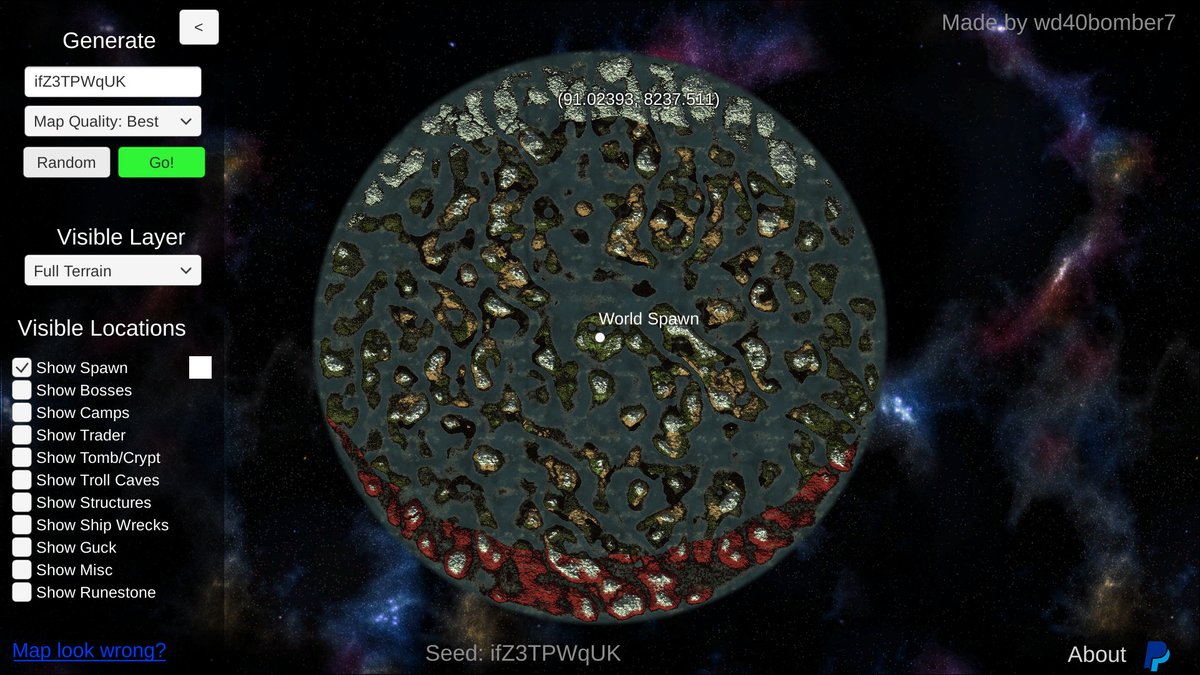
Many Valheim players rely on fantastic web-based map generators (like Our Valheim map generator) to locate resources, bosses, and that elusive merchant. These tools typically work by simulating Valheim's world generation logic based on your seed.
- Understanding How They Work (and Break): These generators reverse-engineer Valheim's code to predict world features. When Iron Gate Studios, Valheim's developer, updates the game, they might tweak these generation algorithms. If the external map generator isn't updated to reflect these changes, it will continue to apply the old rules to your seed, resulting in a map that no longer matches your actual in-game world. This is precisely what happened with the Hearth & Home update, causing many map tools to show incorrect boss or merchant locations.
- Verifying Your Generator's Currency: Before you panic, check the "last updated" date on any third-party map tool you're using. If it hasn't been updated since a major Valheim patch, it's highly likely to be out of sync.
Mod Conflicts & Outdated Addons: The Wild Card
Valheim's modding community is vibrant, offering everything from quality-of-life improvements to game-changing overhauls. However, mods are a double-edged sword when it comes to map generation and display.
- How Mods Can Interfere:
- Direct Map Alterations: Some mods might directly alter world generation or how the map is revealed.
- Data Hooks: Many mods rely on "hooks" into the game's code. If the game updates, these hooks can break, causing unintended side effects, including map corruption or display errors.
- Outdated Libraries: Mod loaders like BepInEx, and the mods themselves, rely on specific game versions. An outdated mod trying to run on a new game version (or vice-versa) can lead to instability.
- Identifying Problematic Mods: If you're running a heavily modded game and experiencing map issues, mods should be your first suspect after external tools. The easiest way to test is to temporarily disable all mods and launch the game vanilla. If the map generates correctly, you've found your culprit. Then, re-enable mods one by one to isolate the specific offender.
Mismatched Game Versions: A Subtle Desync
This is particularly relevant for multiplayer servers. For a seamless experience, both your Valheim client and the dedicated server you're playing on must be running the exact same version of the game.
- Client vs. Server Versions: If your client automatically updated but the server hasn't (or vice versa), you might encounter desynchronized maps, connection issues, or other strange bugs. The server might be generating the world based on version X, while your client is trying to interpret it with version Y, leading to visual discrepancies or misplaced points of interest.
- Cross-platform Considerations: While Valheim is primarily a PC game, any platform differences (e.g., if it were available on console with different update schedules) could introduce similar versioning headaches.
Corrupted Save Files (Rare, But Possible): The Worst-Case Scenario
Though less common, a corrupted world save file can sometimes manifest as map generation issues. This usually happens due to game crashes during saving, hardware failure, or other unexpected events.
- Symptoms: This might look like parts of your map reverting to an earlier state, missing structures, or strange, un-generated chunks of terrain.
- Prevention: Regularly backing up your world save files is the best defense against this rare but devastating issue.
Your Step-by-Step Troubleshooting Playbook
When your Valheim map is playing tricks on you, approach the problem systematically. Here’s a playbook to guide you through the process, from simple checks to more involved solutions.
Step 1: Verify Your Seed – The Foundation
It might sound obvious, but a tiny typo in your world seed is a common source of map discrepancies when using external generators.
- How to Find Your Current World's Seed:
- Launch Valheim and go to the "Start Game" menu.
- Select your character.
- Highlight the world you're having issues with, but don't click Start.
- Look for the seed displayed on the right side of the screen. It's often a string of alphanumeric characters.
- Double-Check for Typos: Carefully re-enter this seed into any external map generator. Even a single character out of place will generate an entirely different world. Pay attention to similar-looking characters like '0' and 'O', '1' and 'l' or 'I'.
Step 2: Compare In-Game to In-Game – Establish a Baseline
Before you even think about external tools, ensure that the issue isn't client-specific or a misunderstanding of the actual in-game map.
- Are All Players on Your Server Seeing the Same Map In-Game? If you're on a multiplayer server, ask other players to check their in-game maps.
- If everyone sees the same map: The server's map is consistent. Your problem likely lies with an external tool or a local client issue.
- If players see different maps (or parts of the map): This points to a more serious server-client desynchronization or even a corrupted server-side map. Proceed to checking game versions and verifying server files.
- Ruling Out Individual Client Issues: If you're playing solo, the in-game map you see is the definitive map. If that map itself seems corrupted or wrong, then you have a local game client issue, not just a discrepancy with external tools.
Step 3: Test with a Known-Good External Generator (If Applicable)
Once you've confirmed your in-game map is consistent (or identified issues with it), you can start troubleshooting external map tools.
- Using Our Valheim map generator and Other Reputable, Updated Tools:
- Find a well-maintained map generator that explicitly states it's compatible with the latest Valheim patch.
- Input your world seed.
- Important: Understand Their Limitations: Remember, even the best external tools are simulations. They predict locations based on the game's known algorithms. They won't show structures you've built, changes you've made, or the exact path you need to take. Their primary purpose is to reveal the base world generation. If a recently updated tool still shows discrepancies, the issue might be deeper.
Step 4: Audit Your Mods – The Usual Suspects
Mods are powerful, but they can easily be the source of map generation woes.
- Temporarily Disable Mods: This is the quickest way to diagnose mod-related problems.
- Locate your BepInEx folder (usually in your Valheim game directory).
- Move or rename the
pluginsfolder insideBepInEx. This effectively disables all your mods without deleting them. - Launch Valheim. If your map loads correctly now, you know a mod is the culprit.
- Clean Installation of BepInEx/Mod Loader: If merely disabling mods doesn't work, or you suspect a deeper issue with your modding framework, consider a clean reinstallation:
- Backup your mods folder.
- Delete your existing BepInEx folder and any mod-related files.
- Reinstall BepInEx and your mod loader from scratch, ensuring you download the latest versions compatible with your current Valheim patch.
- Add your mods back one by one, testing the map after each addition to pinpoint the problematic mod.
Step 5: Check Game & Server Version Parity
This is crucial for multiplayer servers.
- Ensuring Everyone's on the Same Patch:
- For PC (Steam): Your Valheim client should automatically update via Steam. To verify, right-click Valheim in your Steam library > Properties > Updates tab.
- For Dedicated Servers: If you host your own, ensure your server files are up-to-date. If you use a hosting provider, they usually have an option to update the server to the latest Valheim version. Double-check with them.
- Communicate the required game version to all players. An outdated client trying to connect to a new server will often lead to issues.
Step 6: Clear Cache and Verify Game Files
Sometimes, corrupted local game files or cached data can cause graphical glitches or misinterpretations of the map.
- Clear Valheim Cache (Manual):
- Close Valheim.
- Navigate to
%USERPROFILE%\AppData\LocalLow\IronGate\Valheim\cache(you can paste this into your Windows File Explorer address bar). - Delete the contents of this folder.
- Verify Game Files (Steam):
- Open Steam Library.
- Right-click Valheim > Properties > Local Files.
- Click "Verify integrity of game files...". Steam will check for and redownload any corrupted or missing game files.
Step 7: Re-download World Save (Server Host Specific)
If you're hosting a dedicated server and suspect the world file itself is corrupted or outdated (perhaps after a failed update), you might need to try re-uploading or generating a new world.
- Backup First! Always back up your existing world save files before attempting this.
- Consult Your Host: If you're using a game server host, they'll have specific procedures for re-uploading world files or starting a new world. Follow their instructions carefully.
- Local Server: If you host locally, you can try replacing your world save file (
.dband.fwlfiles inC:\Users\[YourUsername]\AppData\LocalLow\IronGate\Valheim\worlds) with a backup, or deleting them to generate a fresh world (again, backup first!).
When Your Merchant is Missing: Specific Scenario Deep Dive
One of the most common frustrations when Troubleshooting Valheim Map Generation Issues is trying to locate Haldor, the merchant, only to find he's not where your web map generator said he'd be. As one Reddit user lamented, "So I'm trying to find the merchant and I'm having no luck. So I tried the map generator site and I still can't find it. My seeds are the same the map so far looks the same. But it even shows some of the bosses in different spots. What am I doing wrong??"
The simple answer is often "nothing."
Haldor's spawn logic is a bit unique. He spawns in the Black Forest biome, but only after you get within a certain proximity (usually around 1.5-2km) of one of his predetermined spawn points. Importantly, there are multiple potential spawn points for Haldor in every world. The game picks one of these points, and that's where he'll be, but only once you've activated it by proximity.
- How Map Tools Might Misinterpret This: Older external map generators might have simply displayed all potential Haldor spawn locations, or incorrectly pinpointed the active one based on outdated game logic. With updates, the exact calculation for which of the potential spawns becomes active, or even the possible spawn coordinates themselves, can change.
- Manual Searching vs. Tool Reliance: While external tools offer a fantastic head start, for Haldor specifically, it's always wise to treat the map generator's indication as a "strong suggestion" rather than gospel. If a reputable and updated map tool shows a potential location, sail/run towards it. Once you get close enough, a small coin bag icon will appear on your in-game map and mini-map, signaling his exact presence.
- Boss Locations: The same logic applies to boss locations to a lesser extent. While their altars are generally fixed, minor tweaks in game generation can shift their precise coordinates by a few meters, or larger updates could move them significantly if the underlying generation rules changed. Again, the in-game map, once discovered, is always the definitive source.
Best Practices for Future Map Harmony
Prevention is always better than troubleshooting. Here’s how to minimize future map discrepancies and keep your Valheim adventures smooth.
- Keep Game and Server Updated: Make it a habit to update your Valheim client and dedicated server promptly after patches are released. This ensures version parity and reduces the chance of desync issues.
- Vet Third-Party Tools Carefully, Especially After Patches: Before relying heavily on an external map generator, check its update history. If Valheim just had a major patch, give the tool developers some time to update their software. Consider it unreliable until it explicitly states compatibility with the latest game version.
- Regular Backups: This is non-negotiable for any Valheim player, especially those hosting servers or with significant build progress. Regularly back up your
worldsfolder (and yourcharactersfolder!) so you can always revert to a known-good state if something goes wrong. - Communicate with Your Server Host/Players: If you're part of a community server, stay in the loop about server update schedules and mod policies. If you host, inform your players about necessary game client updates.
- Document Your Seed: Always keep a record of your world seed somewhere safe, even if you rarely use external tools. It's a critical piece of information for any advanced troubleshooting or map generation.
FAQs: Quick Answers to Common Map Queries
"My seed is the same, but the map looks different on a web tool. Why?"
This is usually due to the web tool being outdated. Valheim game updates, particularly major ones like Hearth & Home, can alter the world generation algorithms. The web tool then tries to generate the map using old rules, leading to discrepancies, even with the correct seed. Always check if the web map generator has been updated to match your current Valheim game version.
"Does the H&H update change old seeds?"
No, the H&H update (and most other updates) doesn't change your world seed itself. However, it can change how the game interprets that seed to generate the world. So, an old seed in a new game version might yield a slightly different world layout than it did in an older game version. This is especially true for the placement logic of specific points of interest (like the merchant or boss altars) as mentioned in the GitHub issue about the H&H update affecting map generation tools.
"Can I fix a corrupted map?"
It depends on the severity. Minor corruptions might be resolved by verifying game files through Steam (Step 6). For more significant corruption, you might need to revert to a previous backup of your world save files (if you have them). If no backup exists and the corruption is widespread, starting a new world might be your only option, though this is a rare occurrence.
"How do I use a web map generator correctly?"
- Find your exact world seed from your Valheim game's "Start Game" menu.
- Choose a reputable web map generator that explicitly states compatibility with your current Valheim game version.
- Input your seed carefully (double-check for typos).
- Understand its purpose: It shows the base world generation (biomes, potential boss/merchant locations, resources). It won't show your builds, discovered areas, or dynamic events. Use it as a guide, not a definitive satellite image of your current game state.
Navigating the Mist: Moving Forward with Confidence
Dealing with a mismatched Valheim map can feel like being lost in a dense fog. But by systematically working through the potential causes—from outdated external tools and mod conflicts to simple version mismatches—you can usually pinpoint the problem and get back on track. Remember, the ultimate source of truth is always your in-game map with the current, unmodded game version. Use external tools as helpful guides, but never at the expense of your own exploration and the game's evolving reality. With this guide in hand, you're now better equipped to troubleshoot Valheim map generation issues and keep your Viking journey sailing smoothly.