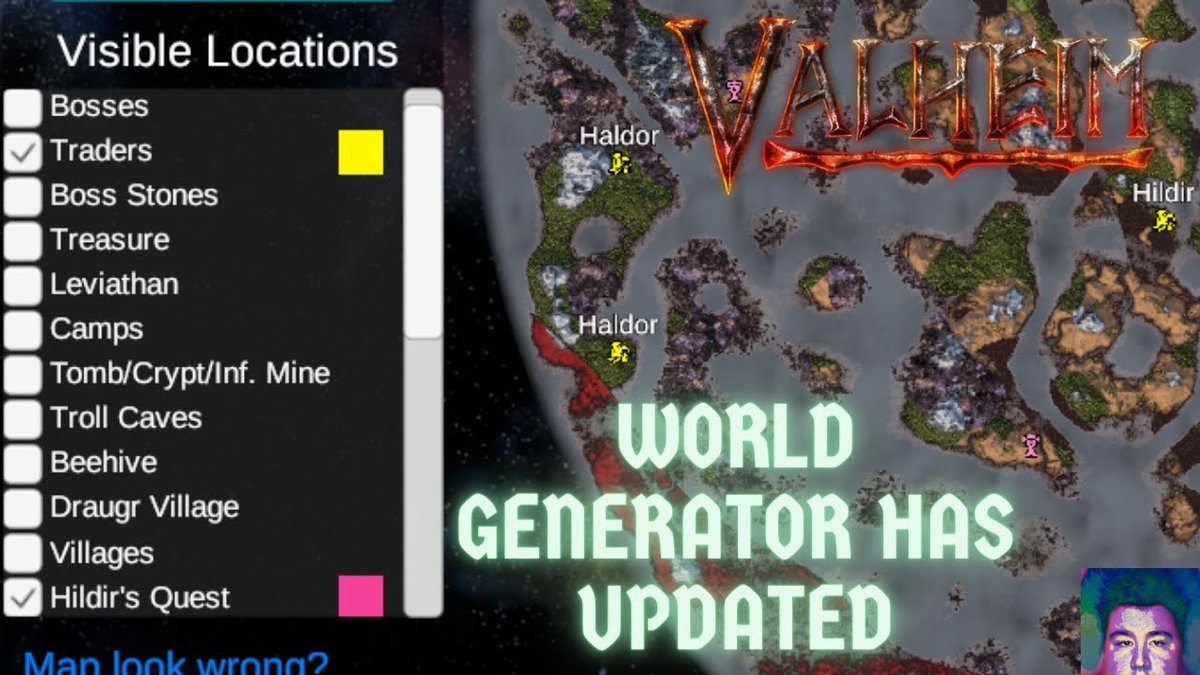
Valheim's vast, procedurally generated worlds are a core part of its charm and challenge. Yet, the thrill of discovery can sometimes give way to the grind of endless searching, especially when you're desperate to find that elusive Trader, the next boss, or crucial resources like silver veins. This is where Valheim Map Generator Alternatives & Companion Tools step in, transforming endless treks into strategic expeditions. These powerful utilities allow you to peek behind the curtain of your Viking saga, revealing your entire world's layout and saving you countless hours of blind exploration.
Whether you're starting a fresh playthrough or trying to salvage a veteran world, understanding how to leverage these tools is a game-changer. Think of them as your cartographer's secret weapon, offering a complete, interactive blueprint of your world before you even chop down your first tree.
At a Glance: Your Map Generator Cheat Sheet
- See Everything: Locate bosses (Eikthyr, Elder, Bonemass, Moder, Yagluth), the Trader, and key resources (copper, tin, silver, crypts).
- Two Main Paths: Use your world seed for new games, or upload your world files for older saves.
- Crucial for Older Worlds: If your world pre-dates the "Call to Arms" (Sept 2024) or Mistlands updates, file uploads are essential for accuracy.
- File Upload Specifics: You must upload both your
.fwland.dbfiles simultaneously. - Personalize Your Map: Add custom pins for home bases, future build sites, or points of interest.
- Team Up: Create temporary lobbies to share your map with friends for collaborative planning.
- Save Time & Sanity: Dramatically reduce exploration grind, focusing on building, fighting, and progressing.
Why Bother with a Valheim Map Tool? Your Time is Precious!
Let's be honest: Valheim is huge. Running across an entire continent just to find the swamp you think you remember, or sailing for what feels like an eternity in search of the Trader, can quickly drain the fun out of your adventure. These map generators aren't about "cheating" – they're about efficiency and strategic planning. They empower you to make informed decisions about where to build your next base, which direction to sail for a specific biome, or how to route your boss progression. You'll spend less time aimlessly wandering and more time enjoying the core gameplay loops of building, crafting, and conquering.
Method 1: Plugging in Your World Seed for Instant Clarity
If you're embarking on a new Valheim journey or simply curious about a friend's freshly generated world, using the world seed is the simplest and most common approach. This method provides an accurate snapshot of the world as it was initially generated, before any player interaction.
Finding Your World Seed
Your world seed is a unique identifier for your Valheim world, like a genetic code. You can easily find it:
- Launch Valheim.
- From the main menu, select "Start Game."
- Choose your character.
- On the "Select World" screen, your world seed will be displayed directly underneath the name of your world. It's usually a string of letters and numbers.
Generating Your Map
Once you have the seed:
- Navigate to your preferred Valheim map generator website.
- Look for a prominent input field labeled "World Seed" or similar.
- Enter your seed precisely, paying attention to case sensitivity.
- Click "Generate" or "View Map."
Voila! In moments, a comprehensive map of your world will appear. You'll instantly see the locations of:
- All Bosses: Eikthyr, The Elder, Bonemass, Moder, and Yagluth. This is incredibly useful for planning your progression path.
- Haldor the Trader: No more desperate searches for the merchant who sells the all-important Megingjord.
- Key Resources: Find deposits of copper and tin, silver veins in the mountains, and crypts/sunken crypts in the swamp.
- Biomes: Clearly distinguish between Meadows, Black Forest, Swamp, Mountains, Plains, Mistlands, and Ashlands.
Many generators allow you to zoom in and out, toggle specific points of interest on or off, and even download the map as an image file for offline reference or sharing.
Method 2: Unlocking Older Worlds with File Uploads
While seeds are fantastic for new worlds, they aren't always accurate for older, established worlds, especially those created before significant game updates. This is due to how Valheim reshuffled certain locations in older saves. For these situations, or if you simply don't know your world's seed, uploading your actual world files is the only way to get a perfectly accurate map. This method reads the current state of your world, including anything you've built or discovered.
The two critical updates that often necessitate file uploads for accurate mapping are:
- "Call to Arms" Update (September 9, 2024): This major update changed world generation logic, impacting older worlds.
- Mistlands Update: For 100% accuracy in worlds that existed before the Mistlands expansion, file uploads are strongly recommended.
The Crucial Steps for Uploading Your World Files
This process requires a bit more care than just entering a seed, but it's straightforward once you know the ropes.
- Locate the Upload Button: On the map generator website, look for "Choose File," "Upload World Files," or a similar button.
- Select Both Files Simultaneously: This is the most vital step. You need to select both the
.fwland the.db(or.DBF) files associated with your world.
- Why both? The
.fwlfile contains the basic world generation parameters and seed, while the.dbfile holds all the dynamic data, like player structures, explored areas, and the precise, current locations of points of interest in a lived-in world. Without both, the generator can't extract full, accurate information. - How to select both: On Windows, hold down the
Ctrlkey and click on both files. On macOS, hold down theCommandkey. Many sites also support dragging and dropping both files onto the upload area.
- Initiate Upload: Once both files are selected, proceed with the upload. The generator will then process these files to render your accurate map.
Where to Find Your Valheim World Files
Your Valheim world files are stored in specific locations on your computer, depending on your operating system and how you saved your game.
- Windows (Legacy/Local Saves):
- Open File Explorer.
- Type
%appdata%\..\locallow\IronGate\Valheim\worldsinto the address bar and press Enter. - This will take you directly to the folder containing your world files.
- Windows (Steam Cloud Saves):
- This path is a bit longer:
C:\Program Files (x86)\Steam\SteamApps\common\Valheim\userdata\<your steam id>\892970\remote\worlds - Important: Replace
<your steam id>with your unique 8-digit Steam ID folder number. You can find this by navigating toC:\Program Files (x86)\Steam\SteamApps\common\Valheim\userdata\and looking for an 8-digit numbered folder. - Linux:
- Open your file manager or terminal.
- Navigate to
~/.config/unity3d/IronGate/Valheim/worlds/ - Dedicated Servers:
- If you're running a dedicated server, you'll need to access your server's file system. This usually involves connecting via SFTP/FTP or using your server host's specific control panel steps to download the
.fwland.dbfiles. Consult your hosting provider's documentation for precise instructions.
Beyond Basic Exploration: Advanced Map Generator Features
Modern Valheim map generators aren't just about revealing locations; they offer a suite of companion tools to enhance your planning and collaboration.
Custom Pins: Mark Your Milestones
One of the most useful features is the ability to add custom pins to your generated map. Imagine being able to:
- Mark your primary home base with a distinct house icon.
- Flag future build sites you've scouted.
- Highlight dangerous areas or dungeons you're not ready for yet.
- Track resource nodes that have respawned.
How it works: Simply right-click anywhere on the map, and you'll typically get options to add a pin. You can often choose from various icons (a skull for danger, a pickaxe for a mine, a bed for a safe house), assign different colors, and add custom notes. These pins are incredibly helpful, and crucially, they'll often be visible if you download the map image or share the map link with others.
Collaborative Conquests: Sharing Your Map with Fellow Vikings
Valheim is often best enjoyed with friends, and map generators greatly facilitate group strategy. Many tools allow you to create temporary lobbies where you can share your generated map with others.
- Generate your map using either the seed or file upload method.
- Look for a "Share Map" or "Create Lobby" option.
- You'll often get a shareable link that you can copy and paste into Discord, your group chat, or email.
- Some generators even offer options to set the lobby as "read-only" (friends can view but not edit) or "editable" (allowing everyone to add pins and collaborate on planning).
This feature is invaluable for coordinating expeditions, planning joint base locations, or simply discussing the next steps in your shared Viking adventure.
Public Display: Embedding Your Valheim World
Beyond private collaboration, some generators allow you to share a stable link to your map that can be used more publicly. This is great for:
- Blog posts: Showcasing your world's layout for a build log or strategy guide.
- Social media: Sharing your unique world with the broader Valheim community.
- Archiving: Keeping a permanent record of your world's layout as it progresses.
These links are usually static once generated, ensuring anyone who clicks it sees the same map.
The Underpinnings: How These Generators Work Their Magic
The accuracy and stability of Valheim world generators are rooted in the game's own engine. Valheim utilizes Unity's "random primitives" for its procedural world generation. These generators essentially reverse-engineer or simulate this process based on the seed (or by directly reading the data from your world files). This technical basis means they can reliably predict and display the locations of static points of interest with remarkable precision, saving you immense time.
Choosing Your Valheim Map Generator: A Quick Guide
While the core functionality is similar, different map generators might offer unique interfaces, additional features, or faster processing times. What should you look for?
- Ease of Use: Is the interface intuitive? Can you quickly find the seed input or file upload?
- Feature Set: Does it support custom pins, sharing, and toggling of various points of interest?
- Regular Updates: A good generator will be maintained to reflect changes in Valheim updates, ensuring continued accuracy.
- Community Trust: Often, the most popular tools are also the most reliable.
If you're looking for a robust and user-friendly option, we've found that Our Valheim map generator is an excellent starting point, offering many of the features we've discussed and a straightforward experience for both new and experienced players.
Troubleshooting Common Valheim Map Generator Hiccups
Even with the best tools, you might encounter a minor issue or two. Here's a quick rundown of common problems and their solutions:
- "My map looks completely wrong or is empty!"
- Check your seed: If using Method 1, ensure you've copied your world seed exactly, including any capitalization. A single typo will generate a completely different world.
- Ensure both files are uploaded: If using Method 2, double-check that you selected both the
.fwland.dbfiles simultaneously. This is the most frequent cause of inaccurate or incomplete maps for older worlds. - Outdated game/generator: Very rarely, if the game has just updated, a generator might need an update too. Check the generator's website for announcements.
- "I can't find my
.fwlor.dbfiles!" - Re-check the paths: Carefully follow the file location instructions above. The Steam Cloud save path, especially, can be tricky due to the
<your steam id>folder. - Hidden folders: Ensure your operating system is set to show hidden files and folders, as some
.configdirectories (on Linux) might be hidden by default. - Dedicated server access: If on a server, confirm you've followed your host's specific instructions for downloading world files.
- "I uploaded my old world, but the map doesn't show my builds."
- This is expected for some generators or when using the seed method alone. However, a properly processed
.dbfile should reveal your structures and explored areas. If it doesn't, ensure both files were uploaded correctly and that the generator you're using supports displaying player-made structures (most do for file uploads).
Your Next Steps to Conquering Valheim's Mysteries
With these Valheim map generator alternatives and companion tools at your disposal, the daunting scale of your Viking world becomes an exciting playground for strategic planning. No longer will you waste precious in-game days searching for resources or that elusive boss altar. Instead, you'll be able to chart your course, pinpoint your objectives, and focus on the true adventure: building, battling, and thriving in the world of Valheim.
So, go ahead. Pull up your current world, or generate a few new ones with interesting seeds. Explore the possibilities, plan your next great build, or map out your boss-hunting expedition. Happy adventuring, fellow Viking!